 hido.
How to use Hido.
From installation to your first answer. Choose your platform and follow the steps below.
Hido for Windows
Windows 10 / 11
Download and install.
Open the downloaded installer and follow the setup steps. Launch Hido when installation finishes.
Download for Windows ↓Sign in to your Hido account.
Use the same account you used at checkout. Your plan appears in Account, and Workspace becomes available when your access is active. No activation key is needed.
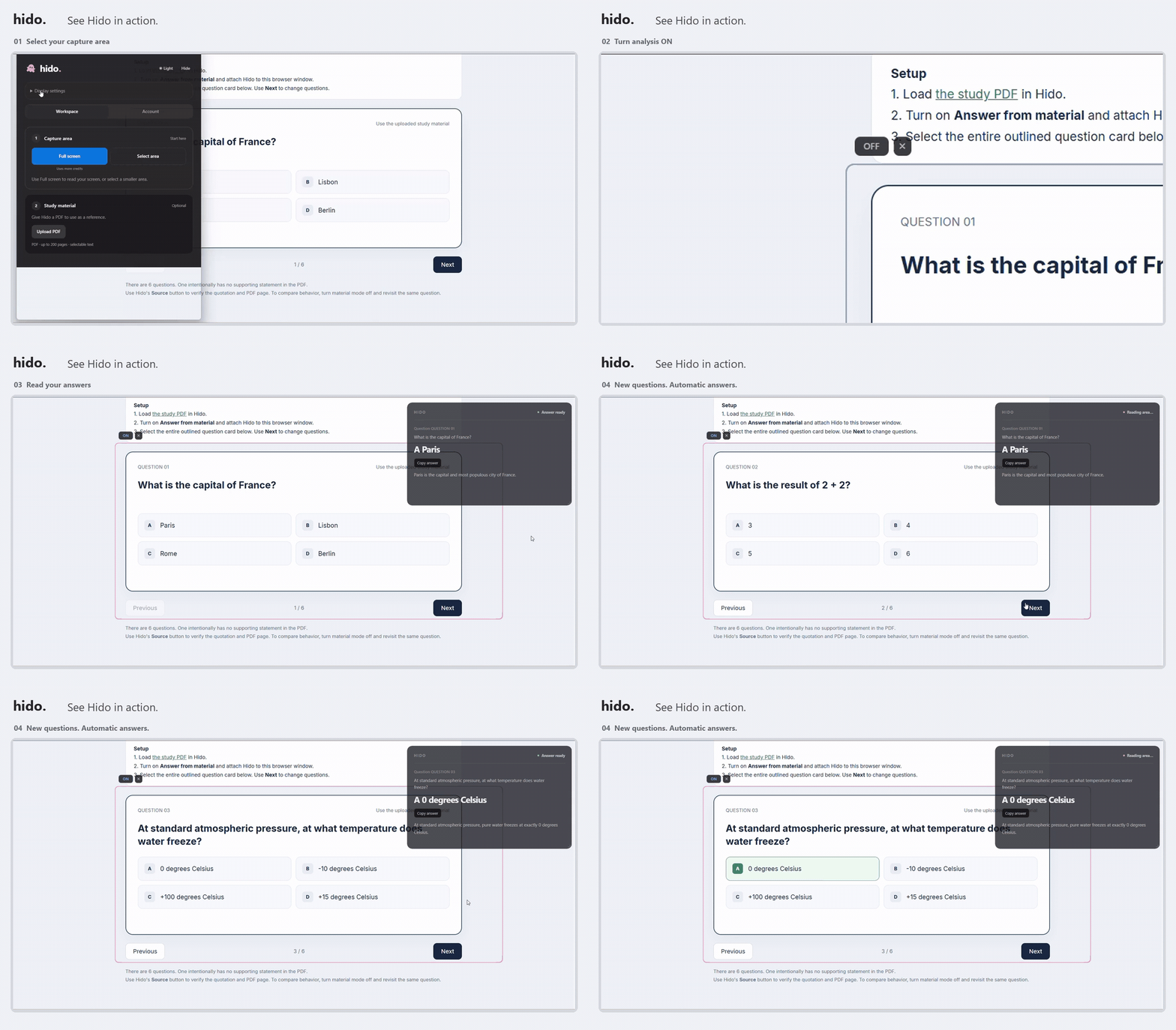
Choose what Hido reads.
Open Workspace and click Full screen to capture your screen. For a smaller part of the screen, click Select area and draw a frame around the questions. You can move the frame and resize it from its edges or corners.
Turn on analysis.
Click OFF above the capture frame to switch it to ON. Hido sends the selected screen content and enabled study material through its server to OpenRouter and the selected AI provider, then shows answers in a separate window. Read the Privacy Policy before enabling analysis. Use it only where AI assistance is permitted. When the questions change, a new analysis starts automatically. Switch it back to OFF to pause.
Read the answers your way.
Move the answer window to a comfortable position, drag an edge or corner to resize it, and scroll through the answers. The status header stays visible while you scroll.
Add your material, if you want.
In Workspace, use Upload PDF to add your study material, then turn the material switch ON. When an answer includes a source, open it to view the supporting passage. Hido indicates when an answer comes from outside your material.
Hido for macOS
macOS 13 or later · Apple Silicon & Intel
Download and install.
Open the downloaded DMG, drag Hido to Applications, then open Hido from Applications.
Download for macOS ↓Allow screen recording.
In Hido’s Account tab, request Screen Recording access. Open System Settings → Privacy & Security → Screen Recording (or Screen & System Audio Recording), and enable Hido. Quit and reopen Hido after granting access.
Sign in to your Hido account.
Use the same account you used at checkout. Your plan appears in Account, and Workspace becomes available when your access is active. No activation key is needed.
Choose what Hido reads.
Open Workspace and click Full screen to capture your screen. For a smaller part of the screen, click Select area and draw a frame around the questions. You can move the frame and resize it from its edges or corners.
Turn on analysis.
Click OFF above the capture frame to switch it to ON. Hido sends the selected screen content and enabled study material through its server to OpenRouter and the selected AI provider, then shows answers in a separate window. Read the Privacy Policy before enabling analysis. Use it only where AI assistance is permitted. When the questions change, a new analysis starts automatically. Switch it back to OFF to pause.
Read the answers your way.
Move the answer window to a comfortable position, drag an edge or corner to resize it, and scroll through the answers. The status header stays visible while you scroll.
Add your material, if you want.
In Workspace, use Upload PDF to add your study material, then turn the material switch ON. When an answer includes a source, open it to view the supporting passage. Hido indicates when an answer comes from outside your material.